
PixVerse V6: Restyle a cut without reshooting
Bring an existing clip into Studio AI customized video and describe the new look. PixVerse V6 keeps the source performance in play while you change grade, setting, or action, and you pick the finish from 360p up to 1080p.
How to use
Upload a short clip, describe the change, choose a resolution, and download the result.
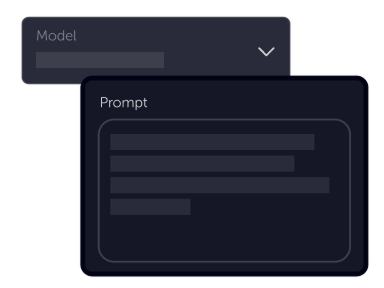
Tell your vision
Open customized video with PixVerse V6 selected and upload a clip about 4–14 seconds long. Say what should change—location, light, wardrobe, or camera energy—while the performance stays recognizable.
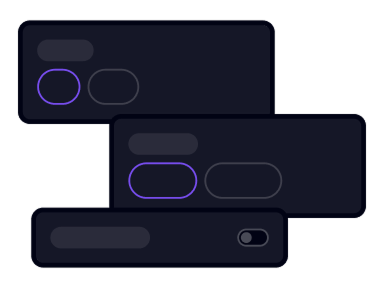
Choose settings
Choose 360p, 540p, 720p, or 1080p. The source should be H.264, between 320 and 1920 pixels on each side, and no larger than 100 MB.
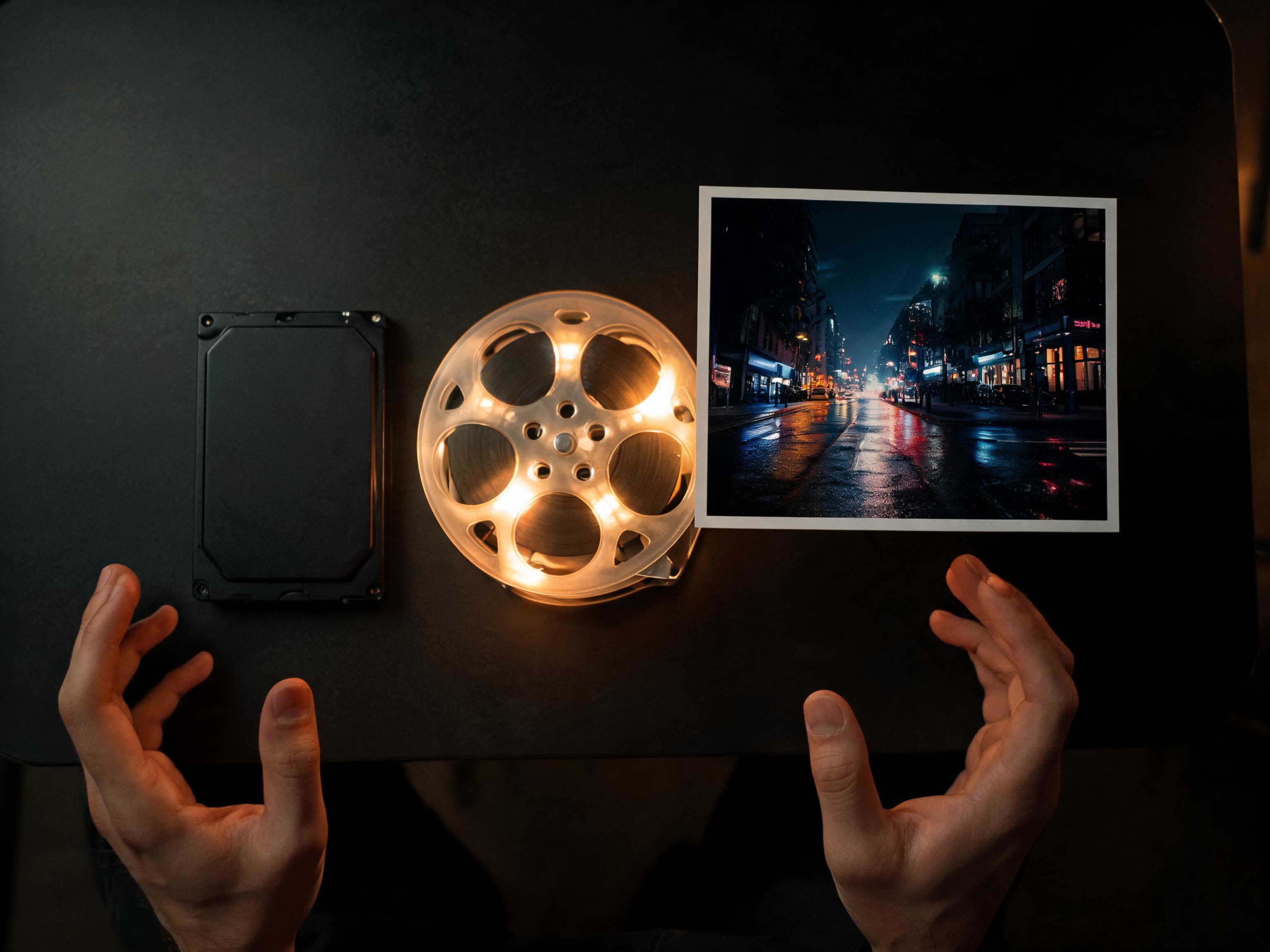
Download
Compare the render with the original cut, tighten the prompt if the world drifted, then download when the shot is ready.
Product benefits
Push an approved performance into a new world, then choose how sharp the delivery should be.
Open customized videoKeep the performance, change the world
Customized video starts from footage you already like. Describe a new setting or grade and PixVerse V6 applies it across the clip instead of asking you to rebuild the edit.
Finish it for the channel
Compare looks at 360p or 540p, then render 720p or 1080p. The source clip still sets the frame—wide, square, or vertical—while you choose how sharp the pass should be.
Ready to restyle with PixVerse V6?
Open customized video with PixVerse V6 already selected, drop in a clip, and describe the look you want.
Launch customized videoFrequently asked questions
Answers about using PixVerse V6 in Studio AI.
What is PixVerse V6?+
PixVerse V6 is PixVerse’s video model in Studio AI customized video (video-to-video). You upload a clip and a prompt; the model restyles that footage at 360p, 540p, 720p, or 1080p.
How do I open it with PixVerse V6 selected?+
Open customized video and choose PixVerse V6 from the model list. The generator starts with that model selected.
What source clips are accepted?+
Clips about 4–14 seconds, encoded as H.264, with width and height between 320 and 1920 pixels, up to 100 MB.
Can I set duration and aspect ratio?+
In customized video the source clip sets the timing and frame, and you choose resolution. On reference-to-video, when that workflow lists PixVerse V6, you can also pick 5, 10, or 15 seconds, aspect ratios including 1:1, 9:16, 16:9, and 21:9, and up to ten reference images.
Does PixVerse V6 generate audio?+
The model supports optional audio in Studio AI when the audio control is shown for the workflow you are in. In customized video you set the clip, the prompt, and the resolution.
Can I use the results commercially?+
Commercial use depends on your MotionElements plan and the terms that apply to AI generations in Studio AI. Review your account license before shipping client work.
Do I need editing experience?+
No. A short source clip and a plain-language prompt are enough to start. Use the resolution control when you want a lighter preview or a sharper finish.