
Happy Horse v1.1: Native audiovisual motion in one render
Happy Horse focuses on clips where picture and soundtrack feel born together—useful for dialogue beats, atmosphere, and brand stories that need audible context without a separate audio pass. In Studio AI you can start from text or stills, then tune aspect ratio, duration, and resolution to match your placement.
How to use
Describe the scene or attach a reference frame, choose duration and aspect ratio, then export—three steps from outline to a clip you can share.
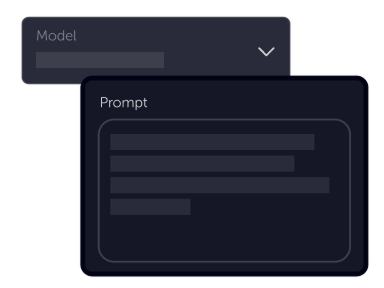
Tell your vision
Write subject, action, lighting, camera language, and any dialogue or ambience you want heard. Clear intent helps the model align motion and mix.
Choose settings
Fine-tune your output by adjusting the available settings to match your creative vision and project requirements
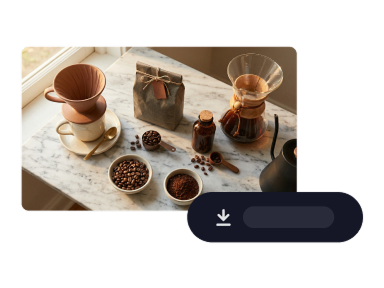
Download
Preview the render, tweak the prompt or settings if needed, then download or hop over to image-to-video for the next beat.
Product benefits
Lean on outputs that keep motion, ambience, and speech timing cohesive—so reviews move faster and re-cutting audio is less of a default step.
Open text-to-videoStereo ambience that ships with the frame
Mood, room tone, and light music cues can arrive with the visuals instead of being painted in later—handy for lifestyle spots, interiors, and product B-roll that should feel lived-in.
Widescreen motion with stable horizons
Tracking and travel shots stay readable when you need wide compositions for trailers, automotive mood boards, or cinematic social crops.
Presenter delivery with cleaner lip timing
Talking-head and host-style prompts can keep mouth motion closer to the cadence of speech across several languages—ideal for explainers, localized pitches, and presenter templates.
Ready for clips with picture and sound in lockstep?
Open Generate video, choose Happy Horse v1.1, and turn your next prompt into a short with native ambience you can feel on first watch.
Generate videoHappy Horse v1.1
Happy Horse v1.1 is available in Studio AI for text-to-video and image-to-video. Pick the model in the generator, set prompt and technical options, then iterate toward the cut you want.
Frequently asked questions
Practical answers about using Happy Horse v1.1 inside Studio AI.
What is Happy Horse v1.1 best for?+
Short, prompt-led videos where synchronized ambience, dialogue timing, and stable motion matter—concept reels, explainers, social cuts, and tests before heavier finishing.
Can I start from an image?+
Yes. Use the image-to-video workflow in Studio AI with Happy Horse selected so your still can seed motion while keeping the audiovisual style consistent.
Which aspect ratios and durations can I pick?+
Studio AI exposes the aspect options supported for Happy Horse—including widescreen, portrait, and square-friendly frames. Choose duration within the range shown in the tool before you generate so deliverables match your brief.
How should I write prompts for dialogue?+
State who speaks, the tone, and what should be audible in the room. Keep instructions concrete; iterate on cadence if lip motion needs to align tighter with speech.
Is it suitable for commercial projects?+
Commercial use depends on your Studio AI plan and the terms covering generated media. Review the latest licensing information in your account before client delivery.
How does Happy Horse compare with lighter models?+
It biases toward cohesive audiovisual output and presentable motion. When you need the fastest draft or lowest cost per clip, compare results with other text-to-video models in the same tool.
Do I need audio post experience?+
No. Describe what you want to hear alongside the visuals; optional settings remain available when you want tighter technical control.