
GPT Image 2.5: Fidelity-first stills for real creative briefs
GPT Image 2.5 prioritizes finish and clarity—strong for photoreal scenes, controlled studio setups, and frames that need dependable edge detail. In Studio AI, describe the shot, choose size and quality in the generator, then iterate toward assets you can hand to design or marketing.
How to use
Write the scene and art direction, pick aspect ratio and quality where available, then export—three steps from prompt to a frame you can compare with your references.
Tell your vision
Describe subject, lighting, lens feel, and materials. GPT Image 2.5 responds well to concrete direction when you need clean surfaces, crisp speculars, and readable form.
Choose settings
Fine-tune your output by adjusting the available settings to match your creative vision and project requirements
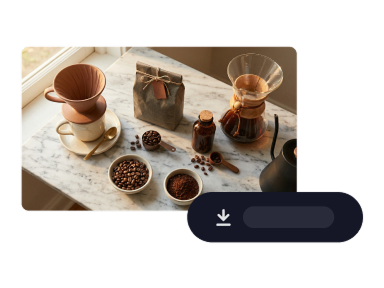
Download
Review the render, refine the prompt or settings, then download or generate another variation for side-by-side picks.
Product benefits
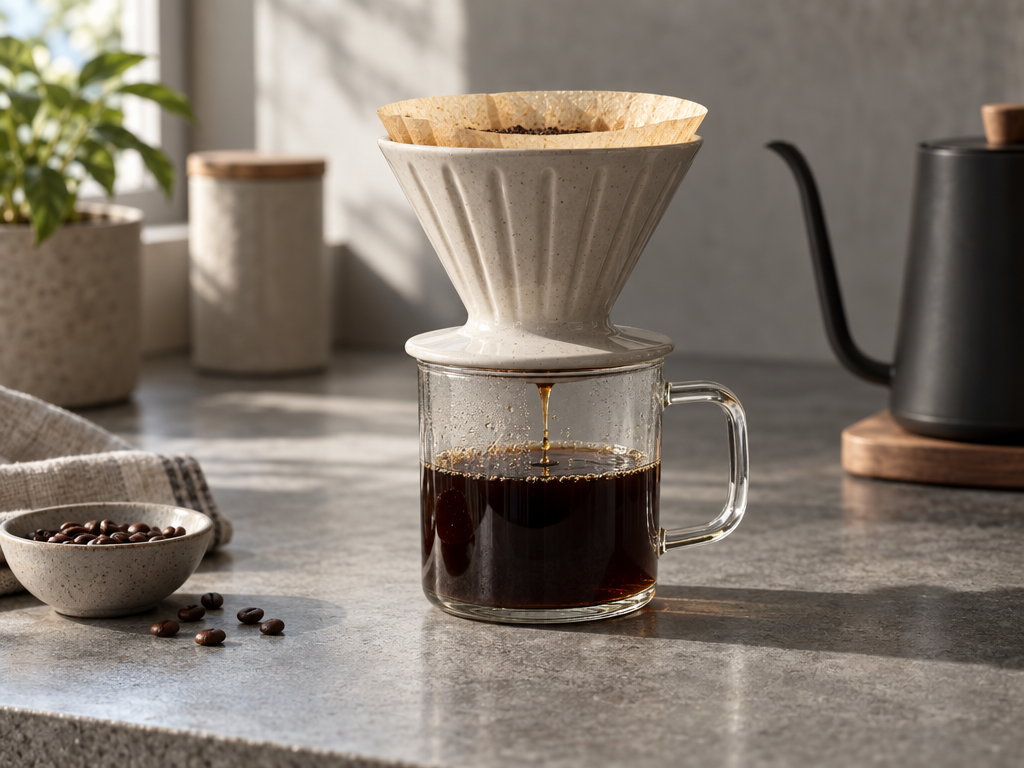
Use a quality-biased image model when polish matters more than the fastest pixel drop—especially for products, subtle materials, and looks that need to survive zoomed-in review.
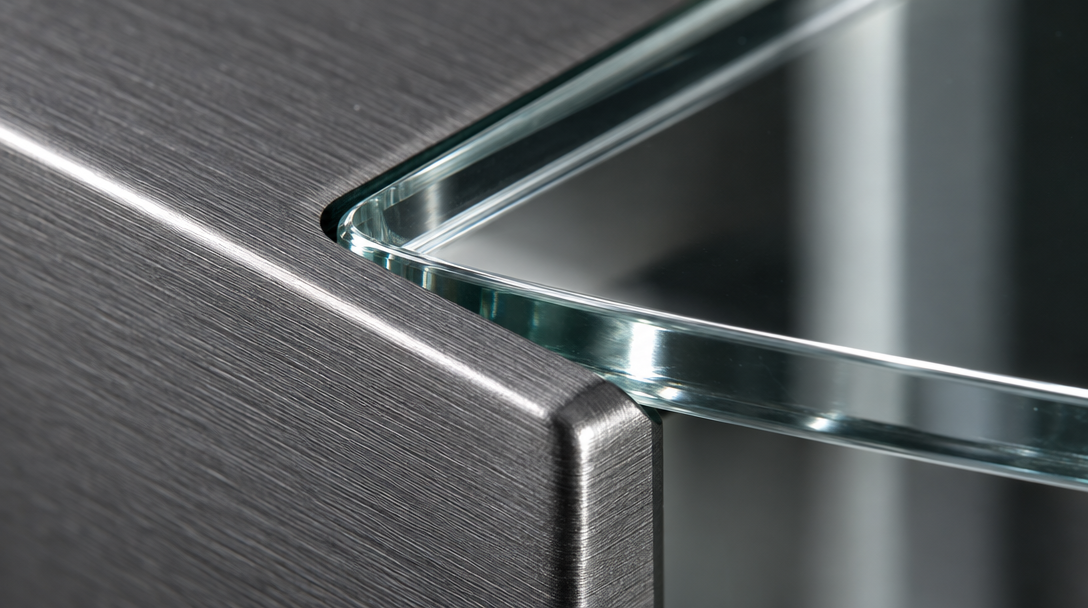
Open image generationBelievable materials in macro and product frames
Metal, glass, and matte finishes hold up in close study—helpful for hero details, industrial cues, and shots where cheap CGI sheen would break trust.
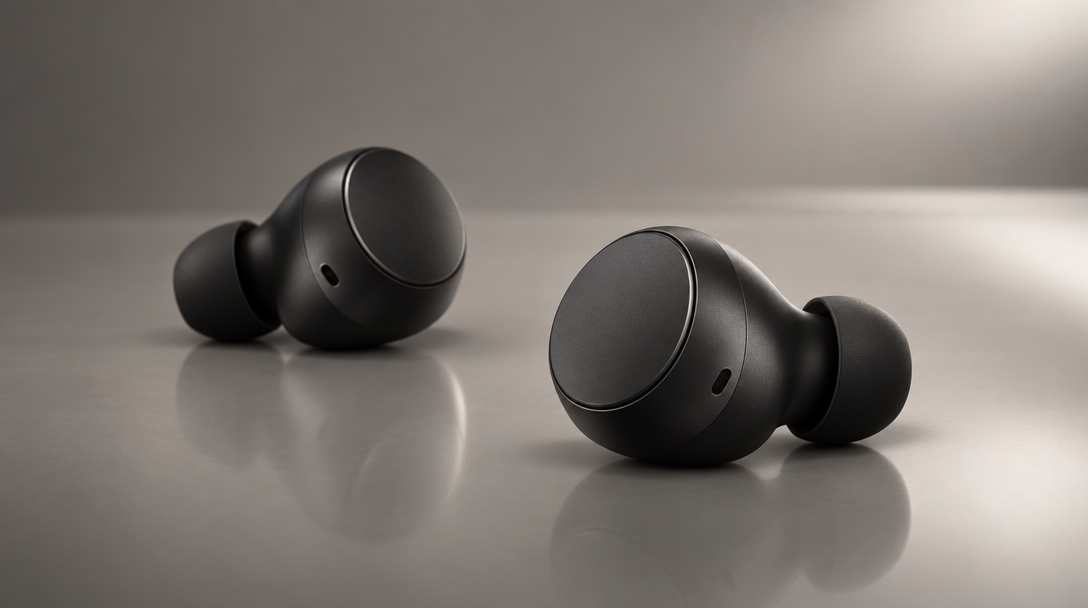
Hero-ready compositions for products and lookbooks
Controlled backgrounds and lighting recipes make it easier to build catalog-grade stills without rebuilding a physical set for every concept.
Editorial light, texture, and atmosphere
Warm daylight, fabric behavior, and gentle interior mood read naturally—useful for lifestyle boards, pitch visuals, and story-first marketing.

GPT Image 2.5: Flare and Sunburst
OpenAI ships two tunings of the same model on Studio AI—pick everyday speed or extra precision without changing price.
GPT Image 2.5 Flare
The fast default for high-quality generation—ideal for rapid iteration, social content, and drafts that still need polished realism.
Try FlareGPT Image 2.5 Sunburst
The precision tier—spends longer on intricate detail and tighter edits when the image must survive close review or multi-round revisions.
Try SunburstBoth variants cost the same in Studio AI. Start with Flare for speed; switch to Sunburst when detail and edit control matter most.
Need frames that hold up in review?
Start from Image generator, choose GPT Image 2.5, and stress-test your next brief with stills built for fidelity.
Generate imageGPT Image 2.5
GPT Image 2.5 is available in Studio AI through the image generation workflow. Select the model, supply your prompt, and tune the options shown in the tool to match delivery specs.
Frequently asked questions
Answers about using GPT Image 2.5 inside Studio AI.
What is GPT Image 2.5 best for?+
High-detail stills where lighting, materials, and overall finish matter—product explorations, pitch visuals, concept frames, and social or web crops that need to look intentional.
Can it handle layouts with text or labels?+
The model is known for strong typography and packaging-style renders on platforms like fal; in Studio AI, follow your brief and iterate on prompts when tiny lettering must stay legible.
Which sizes and quality levels can I pick?+
Use the aspect and quality choices exposed in the Studio AI generator. Higher quality and larger canvases may increase cost or time—pick what matches your review stage.
How should I prompt for product shots?+
Be explicit about background, lighting setup, camera height, and surface finishes. Mention what must stay minimal or label-free if you are avoiding readable packaging in-frame.
Is it suitable for commercial use?+
Commercial use depends on your Studio AI plan and the terms covering generated media. Confirm the latest licensing and usage rules in your account before client delivery.
How does GPT Image 2.5 compare with lighter image models?+
It leans quality-first—better when you need refined realism. For the fastest drafts or lowest cost per still, compare outputs with other Studio AI image models in the same tool.
Do I need professional retouching skills?+
No. Clear language and a few iterative passes usually get you close; use settings when you want more control without manual compositing.
What is the difference between Flare and Sunburst?+
Flare is OpenAI's default GPT Image 2.5 tuning—faster turnaround for everyday text-to-image work. Sunburst trades speed for finer detail and tighter control across edits. In the generator, pick GPT Image 2.5 Flare or Sunburst; deep links use ?model=gpt_image_2_5_flare or ?model=gpt_image_2_5_sunburst.