
Seedance 2.5: Long-form stories with native audio in one pass
ByteDance’s next-generation video model builds synchronized picture and sound together—ideal for narrative beats, product stories, and social spots that need more runway than a quick 5-second loop. Start from text or a still, add reference assets when the tool exposes them, and export in the aspect ratio your channel expects.
How to use
Describe the story—or upload a still and references—set duration and frame shape, then export. Three steps from brief to a review-ready cut.
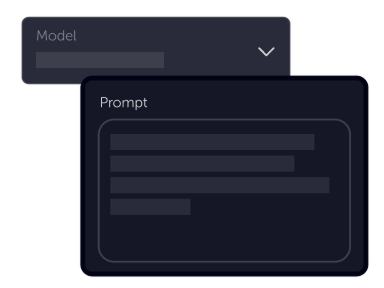
Tell your vision
Write what should happen on screen, or open image-to-video when you already have a hero frame. Add reference images, clips, or audio when Studio AI exposes those fields for Seedance 2.5.
Choose settings
Fine-tune your output by adjusting the available settings to match your creative vision and project requirements
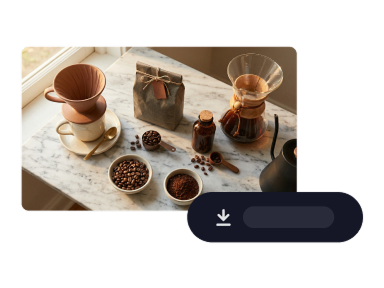
Download
Preview the render, adjust prompt or settings if needed, then download or iterate for the next variation.
Product benefits
Go beyond short clips: longer synchronized runs, richer reference steering, and delivery formats that span vertical feeds to widescreen masters.
Open text-to-videoUp to 30 seconds of audio and video in one pass
Seedance 2.5 is built for longer storytelling: native audio-video generation in a single run so dialogue, ambience, and motion stay aligned without stitching separate passes.
Multimodal references that steer the whole cut
Guide look, motion, and mood with reference stills, short clips, and audio cues when the workflow supports them—so brand boards and shot lists inform the output, not just a text paragraph.
Formats and durations for every delivery channel
Pick aspect ratios from vertical social to ultrawide layouts and the duration tiers Studio AI lists for Seedance 2.5—so exports fit the placement without extra reframing.

Ready for longer AI video stories?
Open Generate video, choose Seedance 2.5, and turn your next prompt—or still plus references—into a polished cut with synchronized sound.
Generate videoSeedance 2.5
Seedance 2.5 is available through Studio AI’s text-to-video and image-to-video workflows. Configure prompts, references, timing, and technical options in the generator to align with your brief.
Frequently asked questions
Practical answers about Seedance 2.5 inside Studio AI and how it compares to earlier Seedance releases.
What is Seedance 2.5?+
It is ByteDance’s upgraded audio-video model for longer, more directed generations. Compared with Seedance 2.0, it emphasizes extended runtimes, joint audio-video output, and richer multimodal reference control when those options are enabled in your workspace.
Where do I use it in Studio AI?+
Use text-to-video or image-to-video and select Seedance 2.5 from the model list when it appears. Deep links use ?model=seedance_2_5. If you do not see it yet, your account may still be on Seedance 2.0—check back after releases or contact support.
How long can clips be?+
The model line supports extended cuts up to about 30 seconds with native audio in a single generation. The exact selectable values in Studio AI follow the Seedance 2.5 options shown in the tool once it is enabled for your account.
Can I use reference images, video, or audio?+
Yes, when the generator exposes reference fields for Seedance 2.5. Upload stills, short clips, or audio beds to steer subject, motion, and mood—availability and limits match the options shown in the tool.
Does it support synchronized audio?+
Seedance 2.5 generates picture and sound together—ambient audio, effects, and speech can evolve in sync with the visuals when audio generation is enabled in the form.
How does it compare to Seedance 2.0?+
Seedance 2.0 remains strong for keyframe-driven image-to-video with optional end frames and up to fifteen-second runs. Seedance 2.5 targets longer narrative cuts, tighter reference steering, and native joint audio-video when you need a more complete story in one pass.
Is it suitable for commercial projects?+
Commercial use depends on your Studio AI plan and the terms covering generated media. Review the latest licensing information in your account before delivering work to clients.