
Luma Ray 3.2: Direction-first cinematic video
Ray 3.2 reasons about composition, motion, and scene logic before frames render—so shorts feel directed, not accidental. Generate from text or animate an approved still, then pick duration, aspect ratio, and resolution up to 1080p for ads, social, and review cuts.
How to use
Describe the scene—or upload a still—set duration and frame shape, choose resolution, then export. Three steps from brief to a clip your team can sign off on.
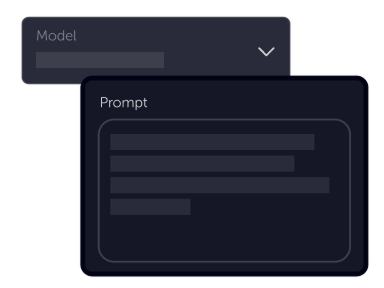
Tell your vision
Write what should happen on screen, or start from an image in image-to-video. Add optional reference stills in text-to-video to lock subject and style when the tool exposes them.
Choose settings
Fine-tune your output by adjusting the available settings to match your creative vision and project requirements
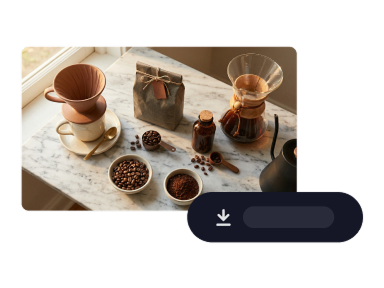
Download
Preview the render, adjust prompt or settings if needed, then download or iterate for the next cut.
Product benefits
Lean on Ray 3.2 when you need tighter creative control: instruction-following motion, text or image starts, and delivery formats that span mobile feeds to ultrawide masters.
Open text-to-videoReasoning-driven motion that follows your brief
Ray 3.2 plans scene logic before pixels move—helpful for product reveals, narrative beats, and spots where jitter or drift would break the illusion of a directed take.
Start from a prompt or an approved still
Use text-to-video for net-new scenes or image-to-video when art direction is already locked. The same model family keeps motion and lighting cohesive across both workflows.
Flexible formats up to 1080p
Choose aspect ratios from vertical feeds to ultrawide banners, 5 or 10 second durations, and resolutions up to 1080p—plus optional seamless looping on shorter clips when your placement needs it.
Ready for production-grade AI video?
Open Generate video, choose Luma Ray 3.2, and turn your next prompt or still into a polished short clip.
Generate videoLuma Ray 3.2
Luma Ray 3.2 is available in Studio AI through text-to-video and image-to-video. Configure prompts, timing, and technical options in the generator to align with your brief.
Frequently asked questions
Practical answers about using Luma Ray 3.2 inside Studio AI.
What is Luma Ray 3.2 best for?+
Short, prompt-driven or image-driven videos where readable motion, stable framing, and up to 1080p output matter—social spots, concept reels, and internal previews before heavier post work.
Can I generate from text and from images?+
Yes. Use text-to-video for scenes you describe in words, or image-to-video when you already have a hero still. Pick the workflow that matches where your asset is in the pipeline.
Which aspect ratios and durations are supported?+
Studio AI exposes the aspect ratios and 5s or 10s duration options available for Ray 3.2 in the generator—including vertical, standard, and ultrawide shapes. Choose placement before you generate.
What about resolution and looping?+
You can select among the resolution tiers offered in the tool, up to 1080p. Shorter clips may support seamless looping when enabled in the generator; longer 10s outputs typically do not.
Can reference images help lock style?+
When the text-to-video form includes reference image fields, you can guide subject and look without pasting long style paragraphs into every prompt. Availability depends on the options shown in Studio AI.
How does Ray 3.2 compare to Ray 2?+
Ray 3.2 adds reasoning-first generation, native 1080p tiers, and refreshed motion quality. Ray 2 remains useful when you want a lighter, established option—compare outputs in the same tool.
Do I need editing experience?+
No. If you can describe a scene—or supply a still—you can guide the model; optional settings are there when you want finer control.